Quick answer: To add text-to-speech to a Virtual Results real estate website, ask your account team to activate voice narration (an optional add-on, expected $25–$50 a month). Then toggle “Activate” in your website settings. Your featured listings and blog posts get a Listen button automatically, and the audio refreshes two hours after your last edit.
Your business doesn’t look like anyone else’s. Your niche, your market, your clients, your way of doing business — it’s yours. So the last thing you need is a website feature that takes a week to decode and another week to manage.
Most AI in real estate works behind the scenes for agents. This one works on the front end, for the buyers and sellers who visit your site, and runs on autopilot for you.
AI voice narration for real estate websites is five minutes to understand and basically zero minutes a week to run. Here’s everything you need to know. 🎧
Good to know: Voice narration is an optional add-on. The voice narration option only appears in your website settings after your Virtual Results account team activates it for your site, so step one is a quick conversation with them.
This guide covers where the Listen button lives, what happens under the hood, how to flip it on or off, and how to tell your clients about it — so it actually gets used.
Tap Listen. This is the real thing.
Two narrations created automatically on a live agent website. Nobody recorded a word.
Try it yourself
2117 5 Avenue, Harlem
4 Family, plus 6 SRO’s, a total of 10 apartments with a yearly income of $252,000 and ideally situated in the lively central side of Harlem! This professionally curated space offers a perfect blend of contemporary comfort and convenience. Enjoy modern amenities, a prime location.
Saved example from Keller New York. Listing courtesy of Keller Williams Realty NYC Grp.
Your Dream Kitchen Could Be a Very Expensive Gift to the Next Owner
You pay for the renovation. They get the Sunday breakfasts. The resale math makes that arrangement even less appetizing.
Saved example from the Keller New York blog.
What you’ll learn:
- Where to find the Listen button on your listings and blog posts
- How narration creates itself without you recording a thing
- What happens when you edit content
- How to turn the feature on or off
- Ready-to-use scripts for newsletters, listing emails, and listing appointments or buyer consultations
Step 1: Find the Listen Button on Your Site
Your visitors don’t always have time to read every word. Now they don’t have to. Here’s where the button shows up.

On your listings
Open any qualifying Active featured or exclusive listing and look right beside the Description. A clean, monochrome Listen/Pause player sits there waiting. It also appears inside the listing modal, so visitors who preview a property without opening the full page still get the option.
On your blog posts
The player sits next to your reading-time estimate at the top of each post. Read it in four minutes or listen while you make dinner. Your call.
Once someone hits play
A progress timeline appears — a lil’ podcast player built right into your page. Visitors can pause anytime and pick up exactly where they left off.
On phones and tablets
The player wraps cleanly on smaller screens. Since the majority of your visitors browse on their phones, it looks just as sharp there as it does on desktop.
Quick tip: Pull up your own site on your phone and tap Listen on one listing and one blog post. Know what your clients see before you start telling them about it.
Step 2: Let the Narration Create Itself
You got into real estate to sell homes — not to become a part-time audio engineer. So here’s what you don’t have to do:
- Record your voice
- Hire voiceover talent
- Upload, rename, or track down audio files
- Remember to “publish” audio separately
Once the feature is on, narration generates automatically for your qualifying Active featured and exclusive listings and your blog posts. That’s it. Yes, it’s that easy!
Why it doesn’t slow your site down
Audio is served separately from your pages, so your page caching keeps doing its job. Your site stays as fast as it was before — no tradeoffs.
Why shared content is extra efficient
Every piece of narrated text gets its own unique digital fingerprint through a process called content hashing. Think of it as a barcode for words.
When the exact same text shows up on more than one site — a shared blog post, a listing syndicated across several agents’ pages — the system spots the match and reuses the existing audio. Nothing gets generated twice. The more agents who use the feature, the more efficient the whole system gets for everyone. 🤯
That’s the reverse of how a lot of software works, where every new user adds the same amount of new processing, so running costs climb in step with growth. Here, each agent who joins adds less new work than the last, because audio that already exists gets reused.
Step 3: Edit Your Content Like You Always Do
Nobody nails a listing description on the first try. Here’s how the update timing works, so you’re never caught off guard.
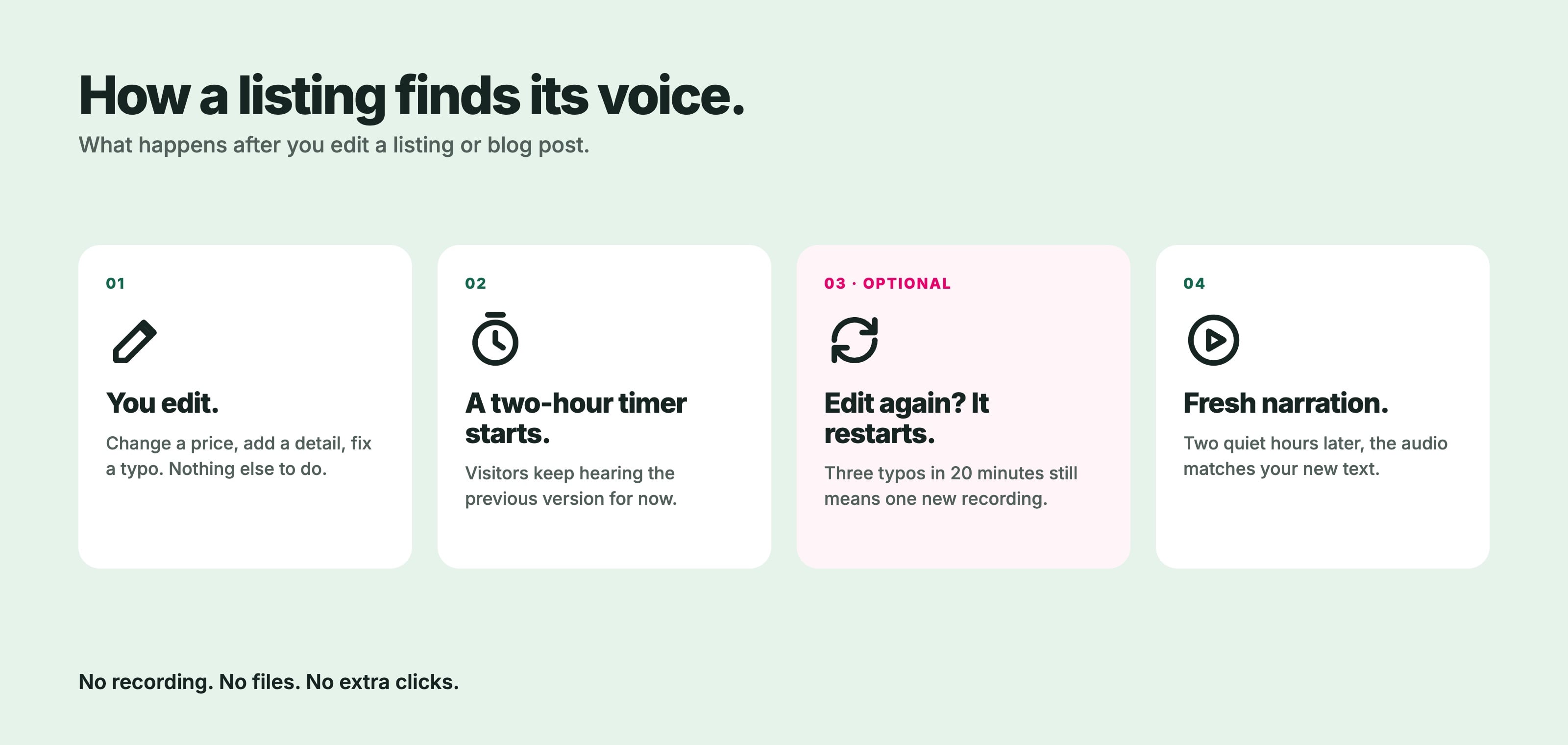
When you change a listing or blog post, narration refreshes on its own. No extra clicks, no alerts to send. Here’s the sequence:
- You make an edit. A price drop, a new detail, a fixed typo.
- A two-hour timer starts. The system waits before building fresh audio.
- Make another edit within that window? The timer resets from zero.
- Two hours pass with no new edits. New narration generates to match your updated content.
Fix three typos in 20 minutes and you still trigger exactly one recording. The system waits until you’re done. Chef’s kiss.
Heads-up: the previous audio plays during the buffer
During that two-hour window, visitors hear the previous version. For minor edits, that’s no issue. For bigger changes — a price adjustment, a major description rewrite — give it a couple of hours before you send clients to the page.
Do a quick listen after major updates
The AI voice is natural-sounding, but it can occasionally stumble on unusual street names, neighborhood nicknames, or local landmarks. After a narration refreshes, play the first 30 seconds of any listing with a tricky name. Better you catch it first.
Step 4: Turn the Feature On (or Off)
Your website works for you. Not the other way around.
To turn it on
- Contact your Virtual Results account team. They’ll confirm your site is ready and walk you through pricing — expected at roughly $25–$50 a month, depending on your listing volume.
- After your account team activates narration for your site, toggle “Activate” on the voice narration option in your website settings. The option won’t appear there until then.
- Give it a little time. Narration starts generating for qualifying listings and blog posts automatically.
- Test it. Tap Listen on a few pages — desktop and your phone.
To turn it off
Changed your mind? Flip it off in your site settings. Your content and headings stay exactly as they were. No cleanup, no broken pages, no drama.
Step 5: Tell Your Clients About It
This is the step most agents skip. It’s also the one that matters most. A Listen button only works if people know it’s there. 💡
Here are ready-to-use scripts. Tap Copy on any of them, adapt it, and make it yours.
In your newsletter
Drop a short blurb near the top:
New on my website: listings you can listen to. 🎧 Short on time? Tap the Listen button on any featured listing or blog post and hear all the details. Perfect for your commute, your workout, or that 10-minute window while dinner’s on the stove.
In your listing emails
One line, right above or below the property link:
Busy day? Tap Listen next to the description and hear everything while you’re on the go.
During listing appointments or buyer consultations
When you walk new buyers through your site, pull up a listing and hit play right there. Then say:
“Every featured listing on my site has a Listen button. Scrolling homes at night with tired eyes? Driving between showings? Just tap it.”
Showing beats telling, every time.
For relocation clients
Out-of-state buyers spend hours researching from afar. Let them know they can listen to your neighborhood guides and market updates during a flight, a commute, or downtime between meetings. It’s a small detail that makes a real impression.
For clients who prefer audio
Some visitors find audio genuinely easier than text — including people with low vision, dyslexia, or reading fatigue. You don’t need to make a big announcement. Just let people know the option is there for anyone who’d rather listen. Keep it simple, keep it welcoming.
On social media
Record a quick screen video of you tapping Listen on a new listing. Caption it:
My listings talk now. 🎙️ Tap Listen on any featured home to hear the details on the go.
In your email signature
Add a line under your contact info:
Prefer to listen? Featured listings on my website now offer audio narration. Just tap Listen.
Why This Is Worth Talking About
For the bigger picture, see why AI voice narration matters for real estate websites and our launch announcement.
This kind of feature has lived almost exclusively on big national-brand websites — places with full engineering teams and budgets that individual agents couldn’t touch. You now have it for an expected $25–$50 a month. As far as we’re aware, that’s a first for individual agent websites at this price point.
Real estate agents don’t fit neatly into cookie-cutter website boxes. Your business is specific. Your clients are specific. The tools you use should be built to match that — not bolted onto a template designed for everyone and optimized for no one.
That’s exactly what this launch is about.
Ryan Rockwood, President of Virtual Results, put it directly:
“Most agents gave up on this kind of technology years ago. They figured it belonged to the national brands with the giant budgets. We didn’t accept that. Now the solo agent working from her kitchen table gets the same tech as the biggest names in real estate — for less than her phone bill.”
So go ahead and show it off. You’ve earned it.
Quick Setup Checklist
- Contact your account team to confirm pricing and activate narration for your site (the settings option appears only after this)
- Once activated, toggle “Activate” on voice narration in your website settings
- Tap Listen on one listing and one blog post (desktop and mobile)
- Spot-check listings with tricky street or neighborhood names
- Add a Listen blurb to your next newsletter
- Add a one-liner to your listing email template
- Demo it live at your next listing appointment or buyer consultation
FAQ
How much does AI voice narration cost? Expected to run roughly $25–$50 a month, depending on your listing volume. Your account team will confirm exact pricing.
Which pages get narration? Qualifying Active featured and exclusive listings, plus your blog posts.
Do I need to record anything? No. The audio is created automatically — no microphone, no voice talent, no files to manage.
What happens when I update a listing or blog post? Narration refreshes on its own. Each edit starts a two-hour timer before new audio generates. New edits during that window restart the clock.
Will it slow down my website? No. Audio is served separately, so your site performance stays exactly where it is. The player works smoothly on mobile too.
What if the voice mispronounces something? It can happen — especially with unusual street names or local spots. Listen to a few of your pages after launch, and reach out to your account team if something sounds off.
Can I turn it off? Anytime, from your site settings. Your content and headings stay exactly as they are.
Does this make my site fully accessible? It adds another accessible way to experience your content, and it works alongside tools like screen readers — not instead of them. Full accessibility depends on your whole site. Think of narration as a meaningful step in the right direction, not the finish line.
Let Your Website Do the Talking
You’ve got the button, the setup steps, and the scripts. All that’s left is turning it on and letting your clients know it’s there.
Reach out to your Virtual Results account team today to confirm your pricing and switch on AI voice narration. Your next visitor might just hit play. 🎧
Keep reading
- Text-to-speech for real estate websites: features, pricing and a live demo
- AI voice narration for real estate websites is here
- Why AI voice narration matters for real estate websites
- The accessibility angle: what text-to-speech can and can’t do for real estate websites
- Behind the build: how we built AI voice narration
Sources and further reading
- W3C Web Accessibility Initiative: Text to Speech
- WebAIM: how screen readers convert text to speech — a non-profit at Utah State University
- Dyslexia Scotland: text-to-speech as a dyslexia support