You can have Google Calendar text reminders running before your next meeting starts. Setup is five steps and takes a few minutes, and the last one is the easiest to forget: adding credit.
This walkthrough follows the real Calendar Alerts setup page, in order, from creating an account to checking that your first reminder went out. If you want the full feature list first, start with what Calendar Alerts does.
Before you start
You need three things: a Google Calendar with your events on it, a U.S. or Canadian mobile number, and a way to pay online for a $25 top-up. Texts and calls only go to U.S. and Canadian numbers.
Step 1: Create your account
Go to alerts.virtualresults.com and choose “Create account or sign in.” This is the Virtual Results login, the same one used across our other tools. If you’re new, a one-person workspace is created for you automatically.
Use a real email address. Disposable addresses are blocked, and each person gets one sign-up per email.
Step 2: Connect Google Calendar and pick a calendar
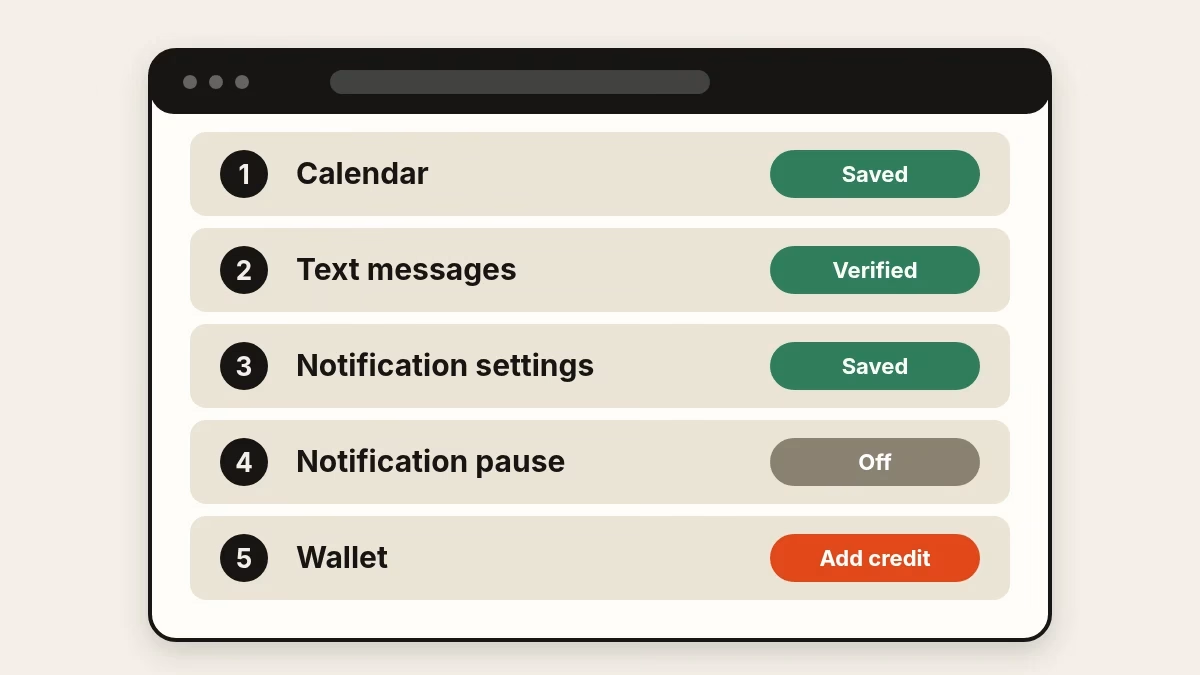
The setup page opens with “1. Calendar.” Choose to connect, then allow calendar access when Google asks. Calendar Alerts requests read-only access to your events and your calendar list, so it can see your schedule but can’t edit it.
Google may show an unverified-app notice on this consent screen. Google shows that warning for apps that haven’t completed its verification process. Read the permissions it lists before you continue; they match the read-only access described above.
When you return, a dropdown lists the calendars your Google account can read. Pick the one that should trigger reminders and press “Save calendar.” Don’t skip the save: until a calendar is saved, no reminders go out. Only that calendar is watched. If your appointments live on a shared family or team calendar, pick that one.
Step 3: Add and verify your mobile number
Section 2 is “Text messages.” Enter your mobile number. U.S. numbers don’t need +1. Tick the consent box, which confirms you’re signing up for reminder texts about timed events on your selected calendar and that you’ve read the privacy notice, then press “Save and text me a code.”
A verification code arrives by text. Enter it and press “Verify number.” The status badge changes to Verified.
Step 4: Choose your channels
Section 3, “Notification settings,” has a switch for each method:
- SMS uses the verified number from step 3.
- Email sends a five-minute warning with the event link. It defaults to your sign-in address; type another to change it.
- Voice call rings with a recorded message. It uses your mobile number unless you enter a different one.
Turn on any combination, then press “Save notification settings.” At least one channel has to be on, and the page warns you if none is. A good first setup for most people is text plus email. Add the call for events you can’t miss.
Step 5: Add credit
Setup isn’t finished until there’s money in the wallet. Section 5 is your wallet. It shows your remaining credit, and it’s where setup stalls for people who skip it, because reminders are skipped on a channel while your balance can’t cover it.
Add funds on the Virtual Results dashboard. Credit comes in $25 top-ups, and workspace owners and billing admins can add it. Reminders start at 5 cents each, for a text, email or phone call, and longer texts cost a little more, based on the actual carrier cost. There’s no subscription fee. Automatic refills aren’t offered, so add more when the balance runs low.
Test it with a ten-minute event
Don’t wait for a real meeting to find out whether it works. Open Google Calendar and create an event on the calendar you saved, starting about ten minutes from now. Make sure it has a start time; all-day events never trigger a reminder.
Calendar Alerts checks every minute and sends the reminder about five minutes before the start, so your test arrives in roughly five minutes. When it does, you’ll see the event title, the start time and a link to the event. Open the “View delivery log” link on your setup page to see what was attempted. The “6. Service status” card also tells you whether reminders are active.
If a reminder doesn’t show up
- Is the calendar saved? Section 1 should read Saved, not “Select and save.”
- Is the event timed? All-day and cancelled events are ignored.
- Is the right calendar selected? An event on a different calendar won’t trigger anything.
- Is there credit? A low balance skips reminders.
- Are notifications paused? Section 4 has a mute switch, with an optional restart date.
- Did you reply STOP? That opts you out of reminder texts.
Good habits once it’s running
Because the lead time is fixed at about five minutes, treat it as a nudge, not a travel alarm. For anything where you need to leave early, add a second event named “Leave for the 2:30” at the time you need to be walking out the door.
Event titles appear in texts and emails, so write titles you’re comfortable seeing on a lock screen. The phone call never reads the title aloud.
There’s a daily limit of 30 reminders in any 24 hours. That’s plenty for a normal schedule, but it counts every channel, so a full day of meetings with text, email and calls all switched on can reach it sooner than you’d expect. If you’re hitting it, turn off the channel you use least.
Finally, take a minute to decide who the reminders are for. They go to the account that signed up, and only that account’s number and address, plus the separate email address and call number you may enter. That’s a feature if you want a reminder to ring a partner’s phone, and a thing to check if you’re sharing a number.
Ready to set it up?
You’re five steps from a heads-up before every meeting. Create your Calendar Alerts account and run the ten-minute test before the end of the day.