A little behind-the-scenes from the workbench: a Claude skill from a real screen-recording session, repackaged for people who want the same workflow in ChatGPT, Codex, or Claude.
Too long; didn’t read: Download the skill zip below, install it in ChatGPT desktop, Codex, or Claude, then paste a YouTube URL. The skill fetches the transcript, writes a readable markdown file, adds a short summary, and builds a quick-reference table of the tools and products mentioned in the video.
Download the skill
Skill zip: howagentsai-youtube-transcripts-skill.zip
Install guide: ChatGPT, Codex, and Claude install guide
Can I paste a YouTube video into my AI assistant and get the useful version instead of the raw caption dump?
Simple to ask. Surprisingly deep to answer well.
Last week we were cutting a long screen recording into a short How Agents AI field-notes video. The story was not a perfect software demo. It was the more useful version: a real attempt to use a Claude skill, the moment it did not work cleanly, and the recovery that turned the mess into a better reusable workflow.
One useful side effect came out of that session: a better YouTube transcript skill.
The first version worked inside Claude. The version on this page is packaged so it is easier to use across ChatGPT, Codex, Claude, and other local agent clients that understand the common SKILL.md format.
What the skill does
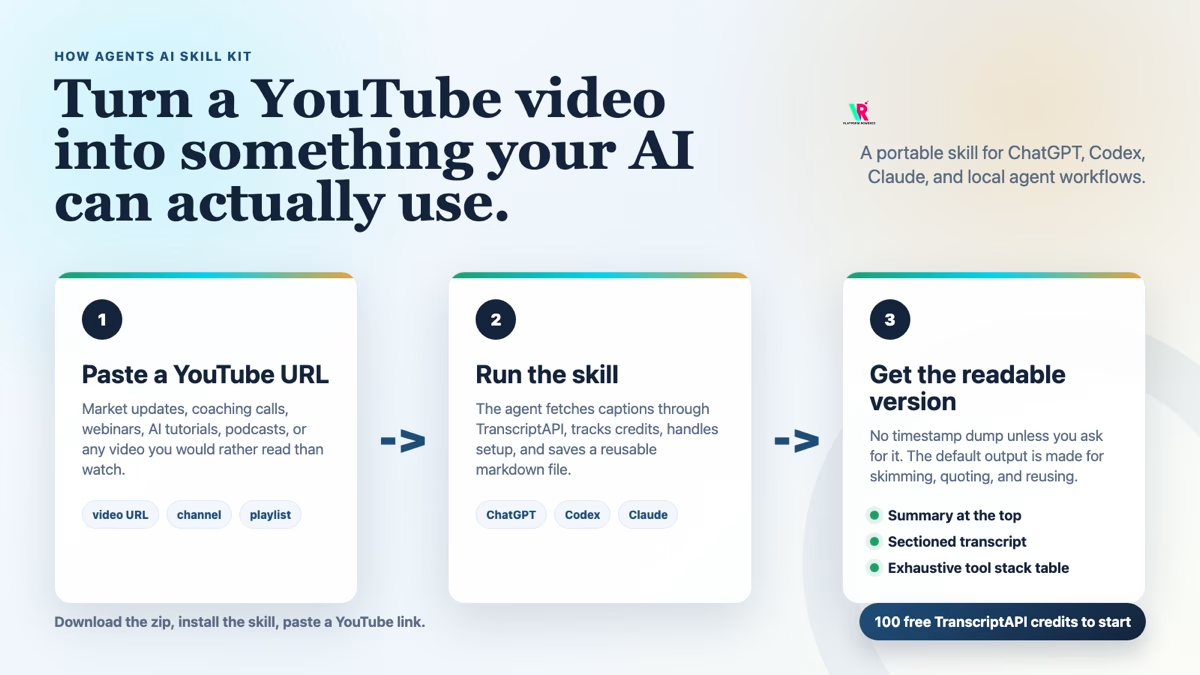
The YouTube Transcript skill lets an AI assistant turn a YouTube URL into a readable transcript file. Not just captions. Not a wall of timestamps. A document you can actually use.
Paste a link to a market update, coaching video, webinar, listing-presentation tip, AI tutorial, podcast, or training session, and ask for the transcript. The skill fetches the captions through TranscriptAPI, then formats the result into a markdown file.
The default output includes:
- A short summary: What the video is, the workflow or argument in one line, key takeaways, and who it is for.
- A cleaned transcript: The body is still verbatim, but the filler, music tags, and caption junk are stripped out.
- Section headings: Tutorials become steps. Interviews become topics or speaker turns. Long videos become skimmable.
- Bolded tools and settings: Product names, models, menu items, and important settings stand out.
- A stack table: Every tool, model, site, or product mentioned gets captured at the end.
For real estate work, that means a 40-minute coaching video can become a four-minute read. A market update can become a source document. A software tutorial can become a tool list. A YouTube rabbit hole can become research instead of a vague memory.
Why the output format matters
The transcript itself is only part of the job.
Most transcript tools hand you either raw captions or a summary that floats too far away from what was actually said. Both have a place, but neither is the format we usually want when we are working.
Raw captions are too noisy. Pure summaries can be too lossy. The useful middle is a readable transcript with a summary on top and the original body still available underneath.
That is why this skill is opinionated about the deliverable.
| Need | What the skill does |
|---|---|
| Understand the video fast | Adds a concise summary before the transcript |
| Keep the source usable | Preserves the spoken body instead of replacing it with a summary |
| Find tools and settings | Boldfaces names and builds a stack table |
| Reuse the output later | Saves a markdown file to your downloads folder |
OpenAI describes skills as reusable bundles of instructions and resources that help ChatGPT and Codex perform repeatable workflows. The package on this page follows that shape: one top-level folder, a SKILL.md manifest, and supporting references for the transcript format, setup, and error handling. You can read OpenAI’s current skill docs here: Build skills for ChatGPT and Codex.
How to install it
The download is a zip file. Inside it is one folder named youtube-transcripts. Keep that folder name as-is.
ChatGPT desktop app
- Download howagentsai-youtube-transcripts-skill.zip.
- Open ChatGPT desktop.
- Open Skills in the sidebar.
- Choose Upload, Import, or Add skill, depending on the wording in your app.
- Select the zip file.
- Start a new chat and paste a YouTube URL.
If your ChatGPT app does not show local skill upload yet, use the Codex CLI install below. OpenAI’s docs note that standalone skills are available in the ChatGPT desktop app, Codex CLI, and the IDE extension, while plugins are the better distribution format when a team wants marketplace-style installation.
Codex CLI or local Codex
Run this from the folder where you downloaded the zip:
mkdir -p ~/.agents/skills
unzip howagentsai-youtube-transcripts-skill.zip -d ~/.agents/skills/
Then start a new Codex session and ask:
$youtube-transcripts Get the transcript for https://www.youtube.com/watch?v=VIDEO_IDIf the skill does not appear, restart Codex.
Claude Desktop, Cowork, or Claude Code
The same bundle also works in Claude-style skill folders.
Desktop or Cowork: open Settings -> Capabilities -> Skills and upload the zip.
Claude Code:
mkdir -p ~/.claude/skills
unzip howagentsai-youtube-transcripts-skill.zip -d ~/.claude/skills/
What happens the first time
The skill uses TranscriptAPI for YouTube data. TranscriptAPI’s public pricing page currently lists 100 free credits to start, no card required, and a monthly plan at $5/month for 1,000 credits. Transcript extraction, YouTube search, channel search, channel videos, and playlist videos cost one credit per successful request; latest uploads and channel-handle resolution are free.
On the first run, the assistant needs a TranscriptAPI key. If you already have one, paste it when asked. If not, tell the assistant:
Create a free TranscriptAPI account for me.The assistant will ask for your email, send a 6-digit verification code, save the key locally, and reuse it next time. The key is stored on your machine, not inside the zip.
The skill also tracks credit usage locally from TranscriptAPI’s response headers. It warns before the free credits run out and gives plain-English instructions when an upgrade is needed.
What you get back
Ask for a transcript like this:
Get the transcript for this YouTube video:
https://www.youtube.com/watch?v=obXqrdmlEE0
The skill writes a markdown file named something like:
yt_transcript_obXqrdmlEE0.mdThe top of the document is a quick read:
- What it is: a one-sentence description of the video.
- The workflow or argument in one line: the core sequence or thesis.
- Key takeaways: three to six specific settings, ideas, numbers, or claims.
- Who it’s for: the audience and trade-off.
Then the transcript body is cleaned and sectioned. At the end, the stack table captures the tools and products mentioned, including incidental competitor mentions. That table is the small thing that makes the file much more useful later.
Quick answers
Is this a ChatGPT skill or a Claude skill?
Both, in practice. The video that led to this came from a Claude workflow, but this download is packaged as a portable skill folder with a SKILL.md file. That makes it easy to use in ChatGPT desktop, Codex, Claude, and similar local agent clients.
Does it download YouTube videos?
No. It fetches transcript and YouTube metadata through TranscriptAPI. It is for reading and researching video content, not managing a YouTube account or downloading video files.
Will it work on every YouTube video?
No transcript tool can fetch captions that do not exist or are not available. If a creator has captions turned off, the skill will tell you plainly and stop instead of pretending it has the transcript.
Why not just ask ChatGPT to summarize the link?
Because the assistant needs reliable source text. This skill gets the transcript first, then builds the summary and readable document from that transcript.
Is this the final distribution format?
Probably not. For a public, one-click installation experience, a plugin is the cleaner long-term format. OpenAI’s docs describe plugins as installable bundles that can include skills and connectors. For now, this zip is the simple version: download it, install it, paste a link, and get the useful file.
Try it
Download the skill, start a fresh chat, and try one of these:
- Market update: “Transcript of this market update: [YouTube URL]”
- Tool research: “What tools does this presenter mention? [YouTube URL]”
- Channel scan: “Summarize the latest uploads from @TomFerry and pull transcripts for the best two.”
That is the whole point of the exercise: fewer prompt tricks, more reusable work.