At 2:26 you are deep in an email. Your phone is in the other room, the calendar banner for your 2:30 call came and went an hour ago, and nothing about this moment says “stop and join.”
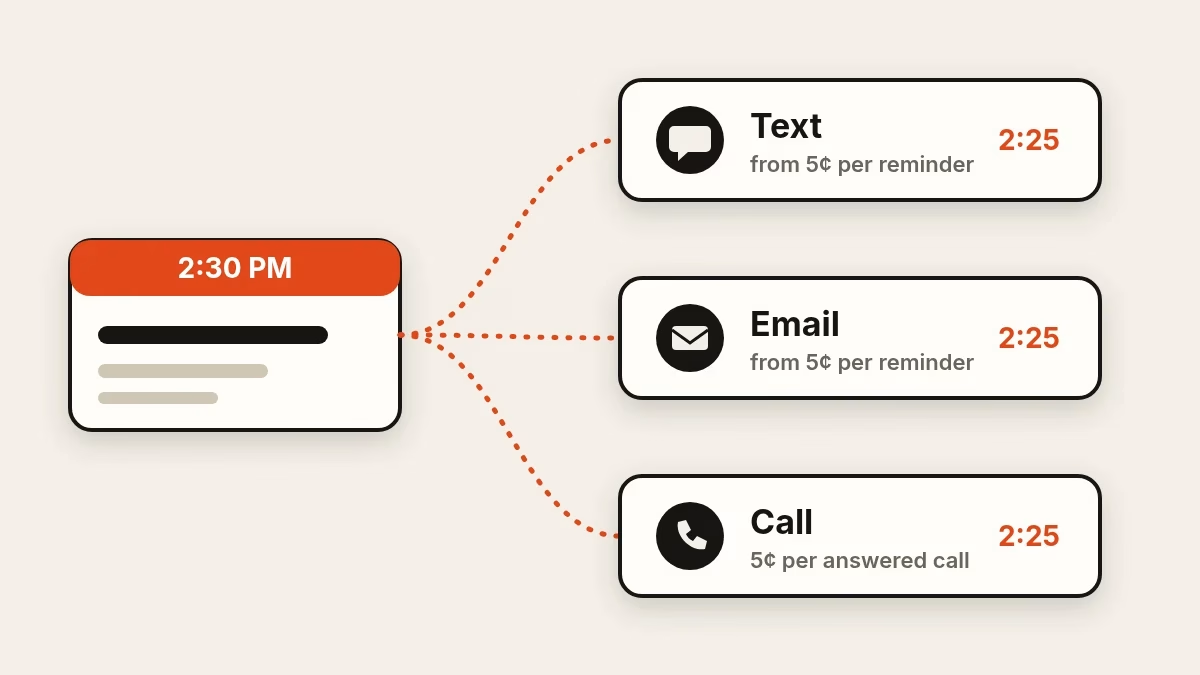
That is the gap a calendar reminder service is supposed to close. Calendar Alerts, from Virtual Results, closes it in one specific way: it watches the Google Calendar you choose and, about five minutes before each timed event, sends you a text, an email, a phone call, or any combination.
Here is everything it does, and a few things it doesn’t, so you can decide in one read.
One reminder, three ways to receive it
You turn each channel on or off yourself. They work independently, so you can have calls without texts or email without either.
- Text. The message reads “New calendar alert:” followed by the event title, the start time and a link to the event, plus a link to your settings. It goes to the mobile number you verified.
- Email. The subject line includes “5-minute warning” and the start time. The body opens with “This is your five-minute warning,” then gives the event title and start time, a link to open the event, and a link to your alert settings. It goes to your sign-in address unless you enter a different one.
- Phone call. An automated voice says, “This is your five-minute alert. A meeting is about to start.” The call doesn’t read out the event title, which is worth knowing if you run several meetings back to back. Calls can go to a different number than your texts.
Which events get a reminder
Calendar Alerts reads one Google Calendar, the one you pick from the list your Google account can see. Every timed event on that calendar gets one reminder per channel you’ve turned on, about five minutes before it starts.
Two kinds of event are skipped on purpose: all-day events and cancelled events. If you want a nudge for something that lives on your calendar as an all-day entry, give it a start time.
The five-minute lead is fixed. There’s no setting to make it ten or fifteen, so if you need travel time, add an event that starts when you need to leave.
Controls you keep
A reminder tool that can’t be quieted gets uninstalled. Calendar Alerts keeps these in your hands:
- Pause. One switch mutes everything. You can set a date for notifications to restart on their own, which suits a vacation.
- Per-channel switches. Turn text, email or calls off without touching the others.
- Disconnect. Disconnecting Google Calendar stops reminders until you connect and save a calendar again.
- STOP and HELP. Reply STOP to a reminder text to opt out. Reply HELP for help and a link to your settings.
- A delivery log. Your account has a log of what Calendar Alerts attempted, so you can check whether a reminder was sent without guessing.
- A daily limit. No more than 30 reminders in any 24 hours, with each channel’s delivery counted separately.
Calendar Alerts asks Google for read-only access to your events and calendar list. It can see your schedule. It can’t change it.
What it costs
There’s no subscription fee. You prepay credit and pay per reminder delivered, on the channels you turned on. Reminders start at 5 cents each, for a text, an email or a phone call. Longer texts cost a little more, based on the actual carrier cost.
Credit is added in $25 top-ups on your Virtual Results dashboard, and you add more yourself when the balance runs low. Automatic refills aren’t offered. A reminder is skipped on any channel your balance is too low to cover, so keep an eye on the balance shown on your setup page.
For scale, a $25 top-up covers up to 500 reminders. Turn on all three channels for the same event and each delivered reminder is charged on its own. Because you pay per delivered reminder, a month with few meetings costs little, and a month with none costs nothing.
What it doesn’t do
Straight answers, so nothing surprises you later:
- It works with Google Calendar only.
- Phone numbers must be U.S. or Canadian, for both texts and calls.
- It reminds you. It doesn’t send reminders to the people you’re meeting, and it doesn’t accept, create or edit events.
- It doesn’t predict conflicts or suggest times. It sends the nudge and stops.
That narrow scope is the point. Calendar Alerts does one job, and it doesn’t ask you to change how you schedule. Keep using Google Calendar the way you already do; the reminders follow your events wherever you put them.
Who it suits
Anyone whose day is a string of appointments on a Google Calendar and who has been late once because a banner never reached them. Picture a calendar with a 9:00 call, an 11:30 appointment and a 2:30 meeting. With text and email on, your phone buzzes at about 8:55, 11:25 and 2:25, each message naming the event and linking straight to it. A call is the loudest of the three, so it earns its place for the one event you absolutely can’t miss.
The setup is the same for everyone: connect one calendar, choose your channels, add credit. After that it runs on its own, every minute, in the background.
Try it on your next meeting
Create an account at alerts.virtualresults.com, connect your calendar, verify your mobile number and add credit. Then the next timed event on your calendar will come with a heads-up.
Set up Calendar Alerts and put your first reminder on a meeting you can’t afford to be late for.