Run Your Real Estate Website From Claude, ChatGPT or Codex: The Website MCP Guide
Connect Claude, ChatGPT, Codex or Cursor to your real estate website. Every task the Website MCP server handles, how approvals work, step-by-step setup and copyable prompts for agents and brokers.
Ryan Rockwood · 13 min read
On this page
- What changed: AI assistants went from advice to action
- Everything your AI assistant can do on your real estate website
- How you stay in control
- How to connect your AI assistant, step by step
- Eight real estate how-tos, with exact prompts
- For brokers and brokerages
- Pricing
- Watch it work
- Questions agents and brokers ask
- What’s next: a monthly deep dive
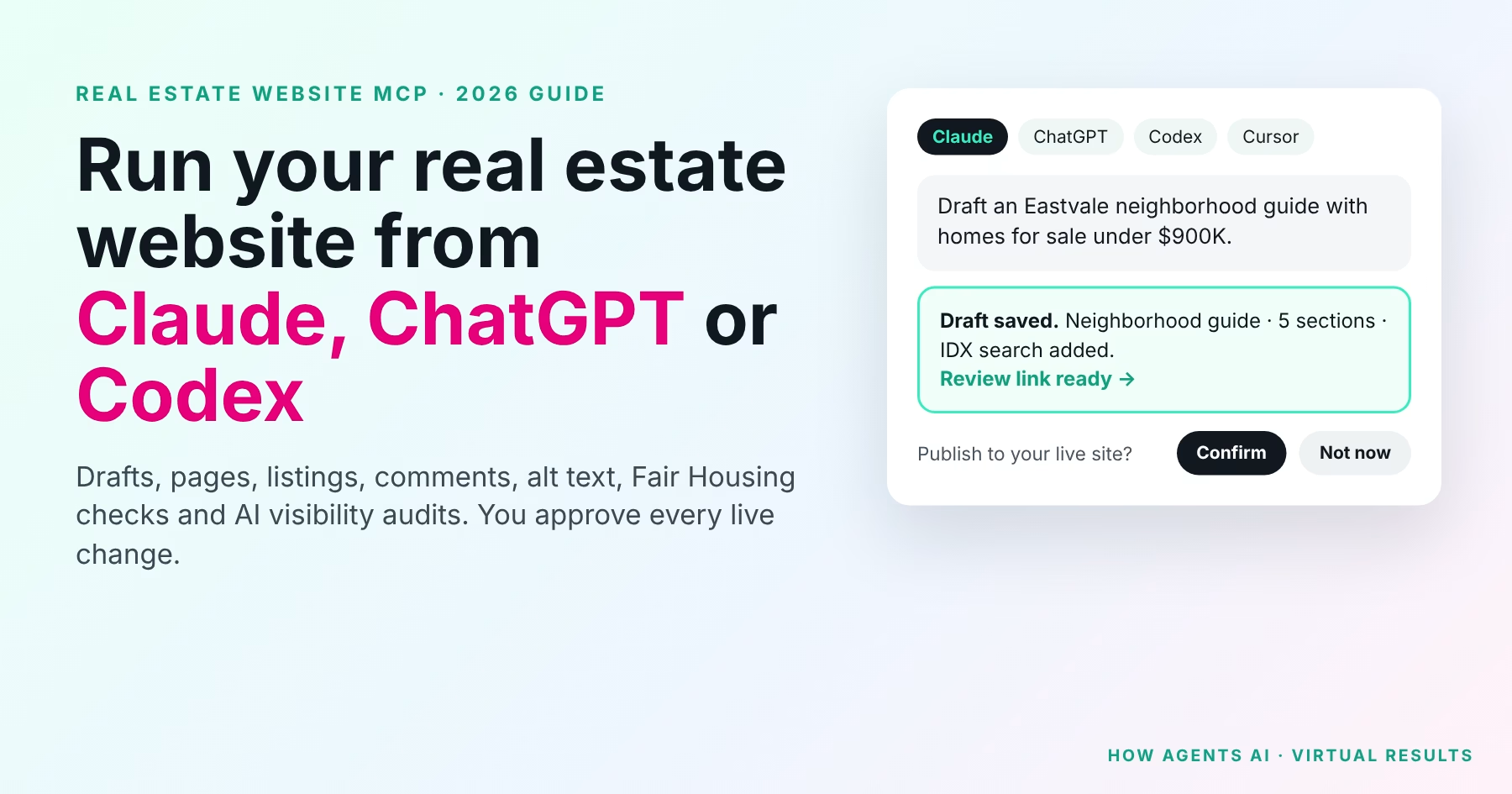
AI for real estate agents is no longer limited to writing text you paste in yourself. With the Virtual Results Website MCP server, you connect Claude, ChatGPT, Codex or Cursor to your real estate website once. Then you ask in plain English: draft a community page, fix missing photo descriptions, approve comments, check listing copy for Fair Housing wording, or check whether AI search can read a page. The assistant makes the change as a draft or shows it to you first. Nothing visitors see changes until you say yes.
This guide covers every task the assistant can handle, how the safety steps work, how to connect each AI app step by step, and prompts you can copy. It is written for real estate agents, teams, brokers and brokerages.
What changed: AI assistants went from advice to action
Until recently, an AI assistant could tell you what to put on your website, and then you had to log in and do it yourself: copy, paste, format, upload, publish. Now AI assistants can make the changes themselves, through an open standard called the Model Context Protocol (MCP). Claude, ChatGPT, Codex and Cursor all support it.
An MCP server gives an AI app a fixed list of actions it may take, such as “write a draft” or “approve a comment,” along with the rules for each one. The AI can only use those actions, and only on sites you have connected.
We built the Website MCP for real estate. A general connector treats every website alike. It doesn’t know your listings, your towns, your agent bios or Fair Housing advertising rules. And a connector that publishes straight to your live site can put a mistake in front of clients before you see it.
Everything your AI assistant can do on your real estate website
These tasks work on any connected site, including sites Virtual Results did not build.
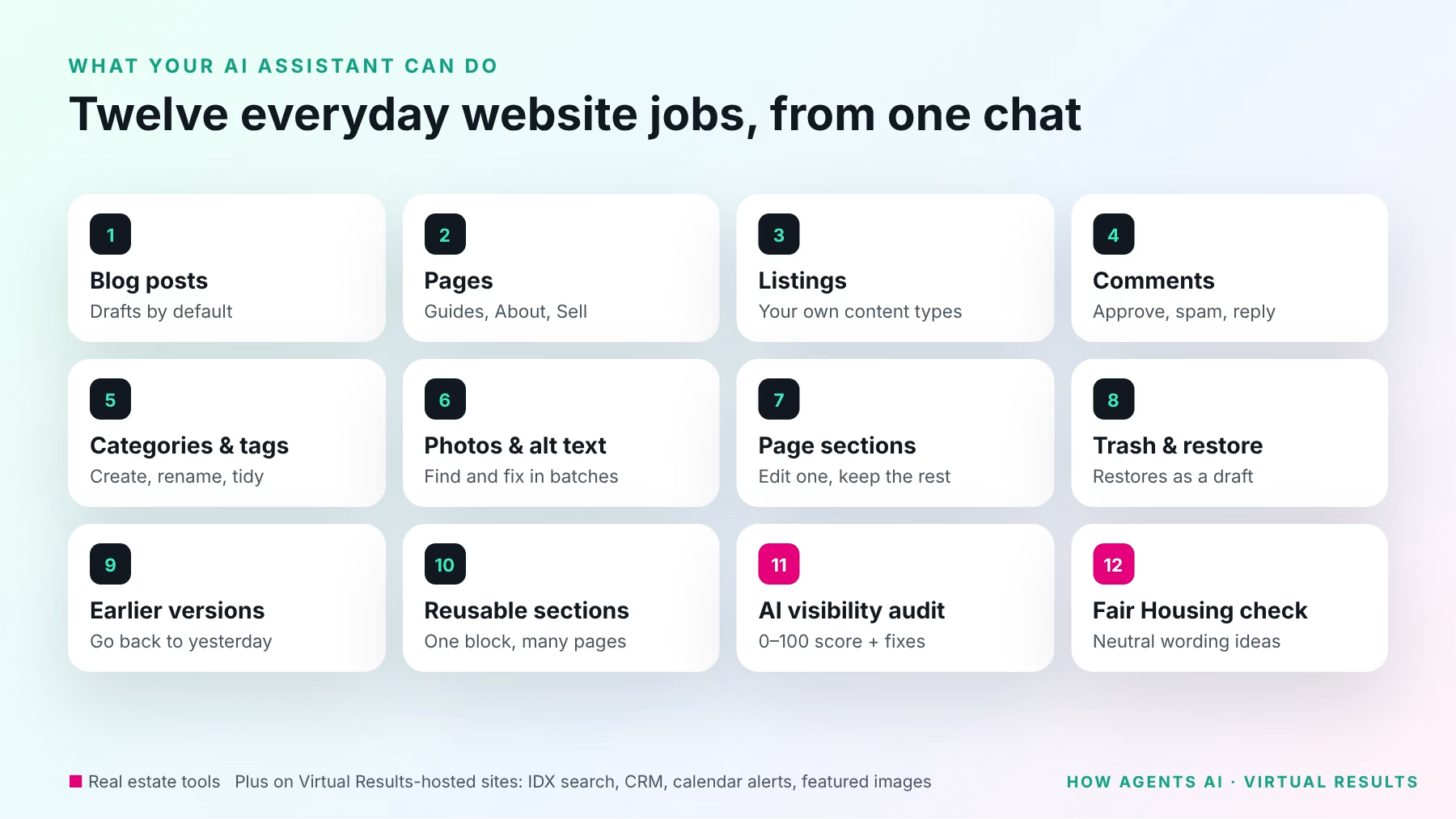
| Job | What the assistant can do | Try asking |
|---|---|---|
| Blog posts | Find, read and write posts. New posts are always saved as drafts. | “Draft a post about this month’s market activity in Corona and give me the review link.” |
| Pages | Build and edit pages, such as community guides, About pages and seller pages. | “Draft a Riverside neighborhood guide page with sections for schools, parks and commute.” |
| Listings and other content types | Work with your site’s own content types, such as listings or testimonials, if your site stores them that way. | “Show me my five most recent testimonials and which ones have no photo.” |
| Comments | Find comments, then approve, hold, mark as spam or trash them (up to 50 at a time), and reply publicly. | “Show pending comments on my blog. Mark the obvious spam and draft replies to the real questions.” |
| Categories and tags | Create, rename, edit and delete categories and tags. | “Create a ‘First-Time Buyers’ category and list the posts that belong in it.” |
| Photos and media | Upload images, list your media library, find images with no alt text, and fix alt text, captions and titles in batches. | “Find every image on my site with no alt text and suggest descriptions.” |
| Page sections | See the sections of a page, then replace, insert, move or remove one section without rewriting the rest. | “On my Sell page, replace only the testimonial section with these three new reviews.” |
| Trash and restore | Move a post, page or item to the trash, or restore it. Restored items come back as drafts. | “Restore the ‘Spring Market Update’ post I trashed last week.” |
| Earlier versions | List the saved versions of a post or page and go back to one. | “My About page looked better yesterday. Show its earlier versions and restore the one from yesterday morning.” |
| Reusable patterns | List, read, create, edit and trash reusable sections you place across many pages. | “Make a reusable ‘Schedule a showing’ section with my phone number and a contact button.” |
| AI visibility audit | Score any public page on your connected site from 0 to 100 for how well AI assistants and search engines can read it, with a fix for each finding. | “Audit my home page for AI visibility and tell me the top three fixes.” |
| Fair Housing check | Screen listing and marketing copy for wording that HUD advertising guidance and common MLS rules flag, and suggest neutral wording. | “Check this listing description for Fair Housing wording issues.” |
Extra tools on sites Virtual Results hosts
If Virtual Results hosts your real estate website, your assistant can also:
- Place IDX listing search. It reads your site’s listing widget designs and prepares a live IDX search block for a page draft, such as “homes for sale under $750,000 in Temecula.” Listings come from your MLS feed, not from the AI.
- Write from your own site. It reads your published agent bios, testimonials, community pages, posts and pages, so drafts sound like you and stay true to your business.
- Make featured images. It can create an AI-made featured image for a draft post or page.
- Work with your CRM and calendar alerts. If you also use Virtual Results CRM or Calendar Alerts, it can find and read CRM records, create or update them, see upcoming calendar events and change alert settings. Each change is shown to you as a before-and-after preview and applied only after you approve it.
How you stay in control
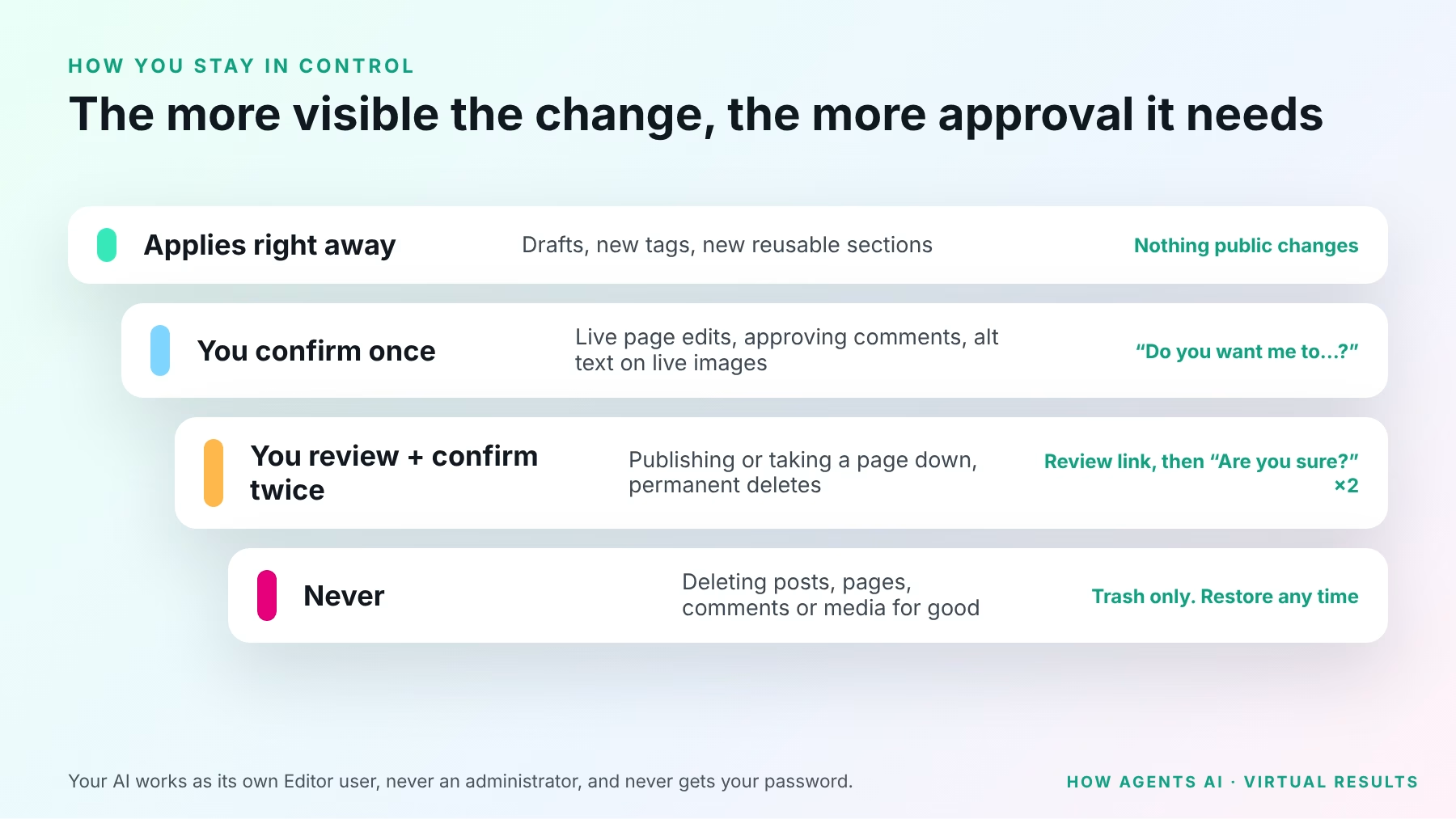
An assistant that can change your website needs firm limits. The Website MCP sorts every action by how visible it is to your clients, and asks for more approval as the risk rises.
| What the assistant is doing | What happens |
|---|---|
| Writing or editing a draft, uploading an image, or adding something visitors can’t see yet, such as a new tag or a new reusable pattern | Done right away. Nothing visitors see changes. |
| Changing something visitors can see, such as editing a live page, restoring an earlier version of it, renaming a category, moderating or replying to comments, or changing alt text on images | The assistant shows you the change and asks once. It applies only after you confirm. |
| Publishing or taking down a post or page | You get a review link to see the page first. Then the assistant asks twice: “Are you sure?” and “Are you really sure?” |
| Deleting a category or tag (this is permanent), or moving a published page, a published post or a reusable section used across pages to the trash | Two separate confirmations. |
| Deleting posts, pages, comments or media for good | Not possible. Posts, pages, comments and patterns only go to the trash, where they can be restored, and media files are never deleted. |
Three more limits apply to every connected site:
- Your assistant never gets your password. You sign in with your Virtual Results account. On sites connected with the free Virtual Results AI Connect add-on, the assistant works as its own Editor user.
- It only has content tools. There is no way for it to change site settings, install software or add users.
- It only reaches sites you connected. Each AI action is tied to your account and to the sites on your plan.
One more thing to know: editing a reusable section changes every page that uses it, once you confirm.
How to connect your AI assistant, step by step
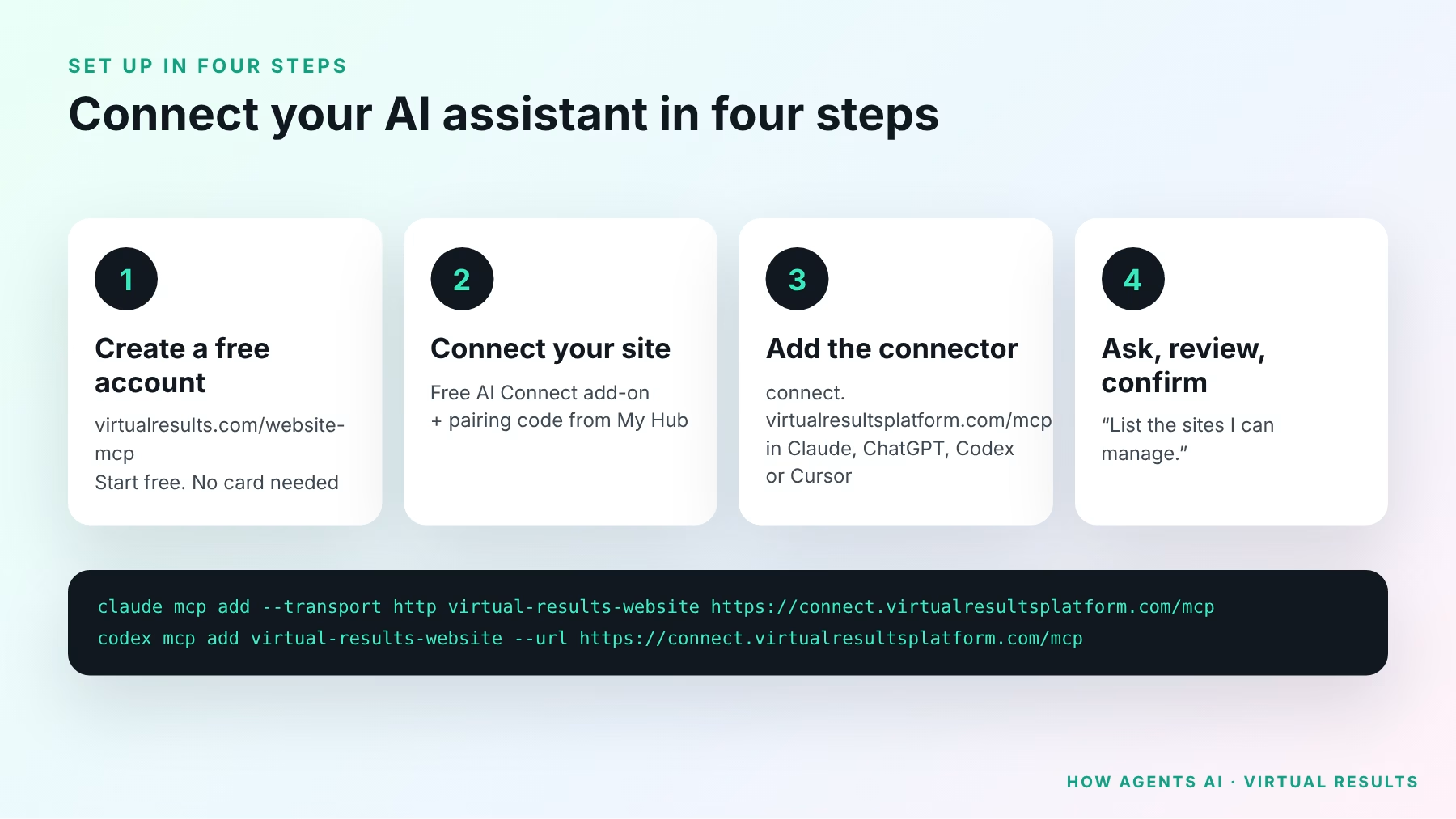
Step 1: Create a free Virtual Results account
Go to the Website MCP sign-up page and choose Create free account. No card is needed.
Step 2: Connect your website
- Download the free Virtual Results AI Connect add-on and install it on your website.
- Open My Hub, choose Websites, add your site’s address and get a pairing code. The code lasts 10 minutes.
- On your website’s dashboard, open Settings → VR AI Connect and paste the code.
Prefer not to install the add-on? The install guide also shows how to connect with an application password for a dedicated Editor user.
If Virtual Results hosts your site, your site may already be set up. Ask us.
Step 3: Add the connector to your AI app
Every AI app uses the same address:
https://connect.virtualresultsplatform.com/mcp
Claude (claude.ai and Claude Desktop)
- Open Customize → Connectors, select + Add, then Add custom connector.
- Name it Virtual Results Website, paste the address and select Continue, then Add.
- Select Connect and sign in with your Virtual Results account. In a chat, turn it on from + → Connectors.
Free Claude accounts can add one custom connector. On Claude Team and Enterprise, an owner adds it under Organization settings → Connectors, and members then select Connect.
ChatGPT
- Custom MCP connections need a Plus, Pro, Business, Enterprise or Edu plan on the web. A workspace administrator may need to allow them.
- Turn on Developer mode under Settings → Security and login.
- Open ChatGPT’s connector page, select +, then Add custom MCP server.
- Name it Virtual Results Website, paste the address under Connection, keep OAuth sign-in, confirm the warning and create it.
Claude Code
Run this command, then type /mcp in Claude Code and finish sign-in in your browser:
claude mcp add --transport http virtual-results-website https://connect.virtualresultsplatform.com/mcpCodex
The Website MCP uses the standard MCP sign-in, which the Codex command line supports. Add the server, then run the login command and finish sign-in in your browser:
codex mcp add virtual-results-website --url https://connect.virtualresultsplatform.com/mcp
codex mcp login virtual-results-website
Cursor
Add this to ~/.cursor/mcp.json, then sign in when Cursor asks:
{
  "mcpServers": {
    "virtual-results-website": {
      "url": "https://connect.virtualresultsplatform.com/mcp"
    }
  }
}
Step 4: Ask your first question
Start with something that changes nothing:
“List the sites I can manage.”
If your site appears, you are connected. The full install guide has the latest steps for each app.
Eight real estate how-tos, with exact prompts
Each walkthrough shows what to type, what the assistant does, and where you approve.
1. Fix missing photo descriptions (alt text) across your site
Alt text describes a photo for screen readers, search engines and AI assistants. Listing and community photos are often missing it.
Type: “Find every image in my media library with no alt text. Suggest a short, factual description for each one based on its file name and title. Show me the list before changing anything.”
What happens: The assistant lists the images and proposes descriptions. It works from file details, not by looking at the photo, so check each one and correct any that are wrong. Because these images appear on live pages, it asks you to confirm before it saves the batch.
2. Clear spam and answer real questions in your comments
Type: “Show me the pending comments on my blog. Mark obvious spam as spam, approve the genuine ones, and draft a reply to anyone asking about a listing or a showing.”
What happens: The assistant sorts the comments and shows you its plan. Moderating and replying change what visitors see, so it asks first, and it can handle up to 50 comments at a time. Trashed comments can be restored.
3. Draft a neighborhood guide, with IDX listing search on hosted sites
Type: “Draft a neighborhood guide page for Eastvale with sections on housing styles, parks, commute and local schools. Use only facts I give you or that are already on my site, and mark anything you’re unsure of. Give me the review link.”
What happens: The page is saved as a draft and you get a review link. On sites Virtual Results hosts, the link opens without logging in; on other sites it opens your site’s own preview, so log in to your site first.
On sites Virtual Results hosts, you can add: “Use my agent bio and recent testimonials, and add an IDX search of homes for sale in Eastvale under $900,000 below the intro.” The assistant reads your published records and prepares the live listing search block in the same draft. Publishing takes your review and two confirmations.
4. Check a listing description for Fair Housing wording
Type: “Check this listing description for Fair Housing wording issues and suggest neutral alternatives: [paste description].”
What happens: The assistant flags phrases that HUD advertising guidance and common MLS rules caution against, and suggests neutral wording. For example, it flags “great schools nearby” and suggests naming the school district and linking to its official ratings instead. It is a wording check, not legal advice.
5. Check whether AI search can read your page
Type: “Audit my ‘Homes for Sale in Corona’ page for AI visibility. Give me the score and the top three fixes, and draft the fixes.”
What happens: The audit scores the page from 0 to 100. It can’t tell you how AI answers rank you. It checks whether ChatGPT, Claude, Perplexity, Gemini, Google and Bing are allowed to read it, and it looks at your llms.txt file, real estate structured data (schema), titles, headings, alt text and tap-to-call phone links. It reads the page as the server sends it. It doesn’t measure page speed.
6. Reorganize your blog categories
Type: “List my categories and tags with post counts. Propose a simpler set built around buyers, sellers, communities and market updates, and show me which posts would move.”
What happens: New categories are created right away, since visitors don’t see them until posts use them. Renaming changes what visitors see, so the assistant asks first. Deleting a category is permanent, so it needs two confirmations, and its posts move to your default category.
7. Undo a bad edit
Type: “My Sell page lost its pricing section. Show me the saved versions from this week and restore the last one that had it.”
What happens: The assistant lists the earlier versions with dates. Restoring a live page asks you once before visitors see the older version. On a draft, it applies right away.
8. Update one section of a long page
Type: “On my home page, show me the sections. Replace only the ‘Recent sales’ section with these three closings: [paste].”
What happens: The assistant changes that one section and leaves the rest of the page as it was, which is safer than rewriting a whole page. Because the page is live, it asks you first.
For brokers and brokerages
- One account, many sites. A real estate broker can connect the company site and agents’ sites to one account, then ask: “Check each of my sites for images with no alt text.” The assistant works through them one site at a time.
- Content tools only. The assistant can’t change settings, install software or add users on any site, and every change follows the approval steps above.
- Use the AI your team already has. One agent can use ChatGPT, another Claude, and your web person can use Codex or Cursor. They all connect to the same address.
- Fair Housing screening before review. Ask the assistant to check listing and marketing copy before it goes to you for approval.
Pricing
| Plan | Price | AI actions a day | Sites |
|---|---|---|---|
| Free | $0, no card needed | 150 | 1 |
| Agent | $79 a year | 1,500 | 3 |
| Team | $199 a year | 5,000 | 10 |
| Brokerage | $499 a year | 20,000 | 25 |
One AI action is one request your assistant makes. Listing your sites and confirming a content change are free; publishing a page uses a few actions. Virtual Results hosting clients are not metered. See the Website MCP page for details.
Watch it work
Watch on YouTube (51 seconds) · MCP vs Zapier in 39 seconds
Questions agents and brokers ask
What is a real estate website MCP server?
It is a connection that lets an AI app, such as Claude, ChatGPT or Codex, take a fixed set of actions on your real estate website. Each action has its own approval rules. The Virtual Results Website MCP adds real estate tools that general connectors lack, such as the Fair Housing check, the AI visibility audit and, on sites we host, IDX listing search.
Does it work with ChatGPT, Claude and Codex?
Yes. Claude, Claude Code, ChatGPT and Cursor have step-by-step setup in our install guide. The Codex command line connects to the same address with the standard MCP sign-in shown above.
Can the AI break my live site?
It is built not to. New work starts as a draft. Changes to live pages need your confirmation. Publishing and taking pages down need a review link plus two confirmations. Posts, pages, comments and media can’t be deleted for good; only categories and tags can be, after two confirmations.
Does my AI assistant get my website password?
No. You sign in with your Virtual Results account. Your site connects through the AI Connect add-on as a separate Editor user, or through an application password you can revoke at any time.
Does it work on a site Virtual Results didn’t build?
Yes. The content tools, the AI visibility audit and the Fair Housing check work on any connected site. IDX search, writing from your site’s agent, testimonial and community records, AI featured images, CRM and calendar alerts are for sites Virtual Results hosts.
Will the AI make up listings or market numbers?
Listing search blocks show your live MLS data. The assistant doesn’t supply listings or verified market statistics itself, so give it your numbers or check its figures before you publish. That is one reason everything goes to you for review first.
What’s next: a monthly deep dive
Each month we will publish one walkthrough on a single part of this guide, with screenshots, a short video and prompts you can copy. First up: fixing missing alt text across a whole real estate website.
Want help setting it up for your team or brokerage? Start free or book a consult with Virtual Results. For more on how agents are using AI, visit How Agents AI.